Routing Objects
Access Lists
- Access Lists are simply a list of subnets with an action of permit or deny applied.
- Access lists are commonly referenced within Route Maps like variables in programming or address objects/address groups on FortiGates – or they are applied directly to a BGP peering.
- Access lists are not exclusive to BGP, they are also frequently used in OSPF route control.
- A common configuration within an Access List entry is the “Exact Match” attribute, which will only “match” a subnet if it is exactly the same IP and subnet mask. If the Exact match attribute is disabled, as it is by default, the list will match any subnet equal to or smaller than it.
- For example, without exact match and 10.5.0.0/16 configured as an Access List entry, the networks 10.5.10.0/24, 10.5.59.0/29, and 10.5.150.10/32 will all match the entry.
- An Access List can be directly attributed to a BGP peering by enabling the distribute-list-in and/or distribute-list-out and selecting the Access List object.
- Access Lists can also be applied to route maps.
- An access list, when applied directly to a BGP peering, will have an implicit deny functionality for subnets not matched by the list.
Prefix Lists
Prefix Lists are very similar to Access Lists in that they also are used to match subnets. Prefix tangents the capability of Access Lists by allowing you to set a greater than (ge) or lesser than (le) operator in relation to the subnet’s CIDR notation integer.
- For example, if you set a Prefix List with the value 10.0.0.0/8 le 16, it will match all subnets less than or equal to /16 within 10.0.0.0/8. 10.1.0.0/10 would be allowed while 10.250.10.0/24 would not.
- In BGP, Prefix Lists can be applied directly to a BGP neighbor via the prefix-list-in/prefix-list-out configuration, or applied to route maps (which are then applied to BGP neighbors).
- A prefix list, when applied directly to a BGP peering, will have an implicit deny functionality for prefixes not matched by the list.
AS Path List
- An AS Path List uses Regex (Regular Expressions) to match an AS and be used either in filtering or matching criteria within a route map.
- Regex is a way to describe a pattern of text you’re looking for—like telling a FortiGate “find me anything that looks like an IP address” instead of searching for one specific IP.
config router aspath-list
edit "list1"
        config rule
            edit 1
                set action permit
                set regexp "^6550[1-3]$"
            next
        end
    next
end
- Regex is a way to describe a pattern of text you’re looking for—like telling a FortiGate “find me anything that looks like an IP address” instead of searching for one specific IP.
- Practically, an AS Path List can be used to match, for example:
- ASs ending in 001
- ASs starting with 20
- ASs ending with even numbers
- Anything above AS 65400
- An AS Path List can also be used as a matching criteria for a neighbor group, allowing you to dynamically group peers based on any pattern of AS. When using the remote-as-filter on a neighbor group, you cannot also use the remote-as attribute.
config router bgp
    set as <local AS>
    config neighbor-group
        edit <name>
            set remote-as-filter <BGP filter>
        next
    end
end
Community Lists and Community Strings
Community lists are lists of BGP attributes called Community Strings, commonly used to filter and control routes. config router community-list
edit <name>
set type {standard | expanded}
config rule
edit <id>
set action {deny | permit}
set regexp <string>
set match <string>
next
end
next
end
- There are two types of community lists: Standard and Expanded. Standard lists match strings exactly and are used for simple filtering. Expanded lists are based on Regex patterns, to match patterns of communities.
- Community strings are created in the [AS]:[#] format, for example 65001:1.
- Community strings are transitive, meaning they are shared with your peers’ peers. However, it is the default behavior on FortiGate that community strings are not sent to peers unless you configure set sent-community enable on the peering.
- Each community list rule is associated with a permit or deny action, allowing or blocking routes matching the community list.
- Community lists can be used within route maps to apply actions such as modifications of attributes of routes.
- Creating match conditions for multiple community strings (one ID per rule) within a single community list will create an “OR” match condition.
- Creating matching conditions for multiple community strings (multiple listed in the same rule, separated by a space) will create an “AND” match condition.
Well Known Communities
These are community strings known by FortiGate, as well as most routing network devices that support BGP. They have specific instructions for your peers and are often applied to route maps.
Some examples include:
- NO_ADVERTISE: Tells the peer not to advertise the routes it receives from our peering.
- NO_EXPORT: Tells the peer not to advertise the routes it receives from our peering to eBGP peers. Advertisement to iBGP peers is still allowed.
- INTERNET: Applied by default. Tells the peer to advertise routes to all peers. Indicates the internet as a destination. All BGP-speaking networking devices belong to this community.
- LOCAL_AS: Similar to no_export but allows advertisement within the sub-AS of a confederation.
Route Maps
A route is a list of rules that are applied in ascending order of ID, beginning with rule 1 on FortiGate. They can be used to apply custom actions based on matched conditions and are often used in conjunction with the other routing objects explained in this document. The most common usage I see is access lists matching specific BGP routes, applied to route maps using the route-map-in and route-map-out to permit those routes and apply local preference and AS Path prepending.
config router route-map
    edit <name>
        config rule
            edit <id>
                set action {permit | deny}
                set match-as-path <string>
                set match community <string>
                set match-ip-address <string>
                set match ip6-address <string>
                set match-ip-nexthop <string>
                set match-ip6-nexthop <string>
            next
        end
    next
end
- Every route map has a permit or deny action, with the default set to permit if an action is not set.
- Route map entries appear in the order that they are configured. To “reorder” then, set a rule’s ID to a less or greater value than other rules in the list. They will still appear out of order in the GUI, but will be evaluated ascendingly by their ID.
- Route map entries are evaluated in order, once a rule is matched, processing stops.
- Route maps can also be used with OSPF and RIP.
- If no rule in a route map matches a route, the route is implicitly denied.
Additional Notes on Routing Objects
- After making changes to Routing Objects already applied to BGP peerings, changes will take effect in roughly 2-3 minutes, so long as the default Capability: Route Refresh has not been disabled within the peering settings.
- If you wish to reflect a change sooner, “Soft Reset” the peering.
BGP States
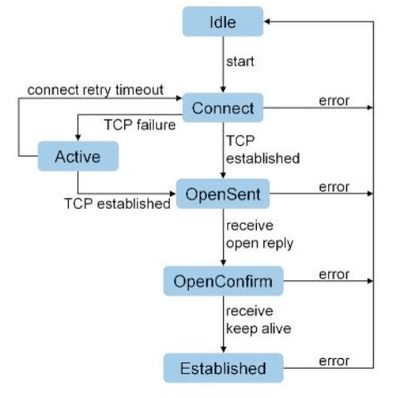
When you configure a BGP peering from your FortiGate, then via the GUI or CLI check whether your peering is “up” with your neighbor, you’ll see one of the above states listed. The most common that you’ll see are Idle, Connect, and Established. Established is what you want, meaning the BGP peering is “up” and good to begin advertising and receiving routes.
- Idle
- The initial state after you have configured a neighbor from your FortiGate. No BGP connections have been initiated and all incoming connections are refused.
- Connect
- FortiGate has initiated a connection to the neighbor. FortiGate is listening for TCP connections from the neighbor.
- FortiGate will send 6 total connection attempts over time (after 1, 2, 4, 8, 16, and 32 seconds). Waiting a cumulative maximum period of 63 seconds. BGP will then move into the Active state.
- If any of the above connection attempts result in a successful TCP handshake, an Open message is sent to the neighbor and the state moves to OpenSent.
- Active
- FortiGate is listening for a TCP connection.
- When this state begins, the ConnectRetryTimer begins counting down. Once it expires, the BGP peering moves back to the Connect state.
- OpenSent
- BGP is waiting for an Open message from the neighbor.
- When an Open message is received, FortiGate checks it for errors. If no errors are found, BGP moves to the OpenConfirm state.
- OpenConfirm
- BGP is waiting for a Keepalive message acknowledging its Open message.
- Established
- The connection is confirmed and update messages are sent to exchange routing information.
BGP Timers
The following timers are set on a global BGP basis, with the exception of set connect-timer.
set keepalive-timer [3-65535]- Frequency at which FortiGate sends keepalive messages to established peers.
- Can be set per-peer via set keep-alive-timer [3-65535].
- The default keep alive timer is 60 seconds.
- The keep alive timer should always be ⅓ or less than the holdtime timer. If a ratio above ⅓ is configured, the FortiGate will use a keep alive that is exactly ⅓ of the configured holdtime.
- BGP must be hard reset to apply changes to this value.
set holdtime-timer [3-65535]- Maximum amount of time FortiGate will wait before marking a peer as dead.
- Can be set per-peer via set holdtime-timer [3-65535].
- The default holdtime timer is 180 seconds.
- Keep alive and holdtimes are negotiated between peers, with the lesser value between the two being chosen.
- BGP must be hard reset to apply changes to this value.
set advertisement-interval [0-600]- Minimum interval FortiGate will wait to send routing updates.
- The default advertisement interval is 30 seconds.
- This value is not required to match between peers.
- Lower advertisement interval = faster convergence but more BGP UPDATE traffic.
set connect-timer [1-65535]- Maximum amount of time for the ConnectRetryTimer.
- When ConnectRetryTimer expires, FortiGate will initiate a new TCP connection attempt to the BGP peer.
- The default connect timer is 120 seconds.
- No global BGP configuration for this timer, it is exclusively set on a per-peer basis.
set scan-time [5-60]- Background interval in which BGP checks next-hop availability of routes.
- If a route’s next hop is not reachable, the route will not be used.
- The default scan time is 60 seconds.
- Can be set to 0 second to disable scan time, however this is strongly discouraged as the FortiGate will skip proactive next hop checks entirely.
- Background interval in which BGP checks next-hop availability of routes.
FortiGate BGP Troubleshooting
Troubleshooting Commands
show router bgp
get router info bgp summary
get router info bgp network
get router info routing-table bgp
get router info bgp neighbors
exec router clear bgp all
What routes am I sending to my peer?
get router info bgp neighbors [peer IP] advertised-routes
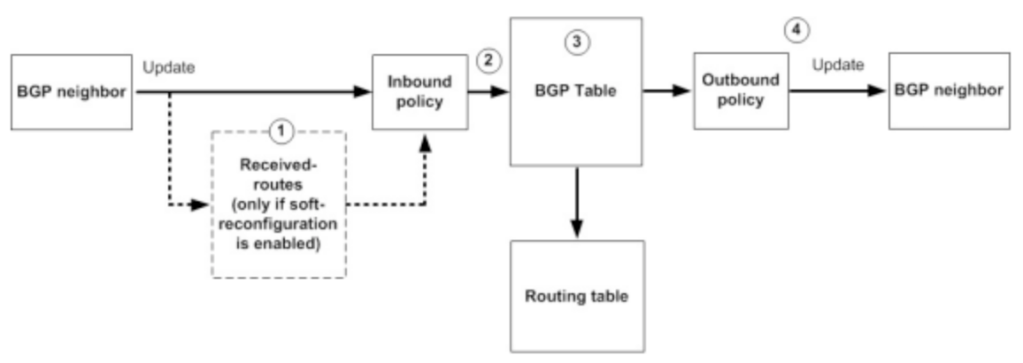
What routes am I receiving from my peer? (Pre-inbound-filter, soft reconfiguration enabled)
get router info bgp neighbors [peer IP] received-routes
What routes am I receiving from my peer? (Post-inbound-filter)
get router info bgp neighbors [peer IP] routes
Check if the BGP port is listening
diagnose sys tcpsock | grep 179
Run a packet capture to verify BGP TCP session establishment
diagnose sniffer packet any 'tcp and port 179' 4
Soft Reset all peers
execute router clear bgp all soft out
Hard Reset all peers
exec router clear bgp all
Turn on BGP debugging
diagnose ip router bgp level info
diagnose ip router bgp all enable
diagnose debug enable
Flapping Routes
Route Flap occurs when there are changes to a network that cause a peering to go offline and routing to reorient. This is often seen when a FortiGate reboots, fails over to an HA pair, or intermittent packet loss is experienced on a circuit.
While the obvious solution is to solve the root problem in the case of circuit or power issues, there are often factors outside of your control that will require you to give BGP a bit more slack.
Flapping Routes – Option #1 – Holdtime Timer
The Holdtime timer is the maximum amount of time a BGP speaker waits for a keepalive message from a peer before declaring the peer dead. Any time a keepalive is received, the timer is reset to, by default, 180 seconds.
- Lowering this value will cause BGP to failover faster by declaring peers dead sooner. Raising this value may be useful in a situation where BGP goes down for a period longer than 180 seconds before being restored.
Flapping Routes – Option #2 – Dampening
Dampening is a “smarter” solution in that it only applies once a route has flapped twice, and then will adjust based on whether the route continues to flap or not. Once dampening begins, a countdown timer begins, similar to the Holdtime timer, however with dampening the timer will extend itself each time the route continues to flap.
config router bgp
    set dampening {enable | disable}
    set dampening-max-suppress-time <minutes>
    set dampening-reachability-half-life <minutes>
    set dampening-reuse <integer>
    set dampening-route-map <string>
    set dampening-suppress <integer>
    set dampening-unreachability-half-life <minutes>
end
The countdown timer can also be thought of as a penalty, like being put in the penalty box or a child given a timeout. If the route continues to “misbehave” while in timeout, their penalty will continue longer.
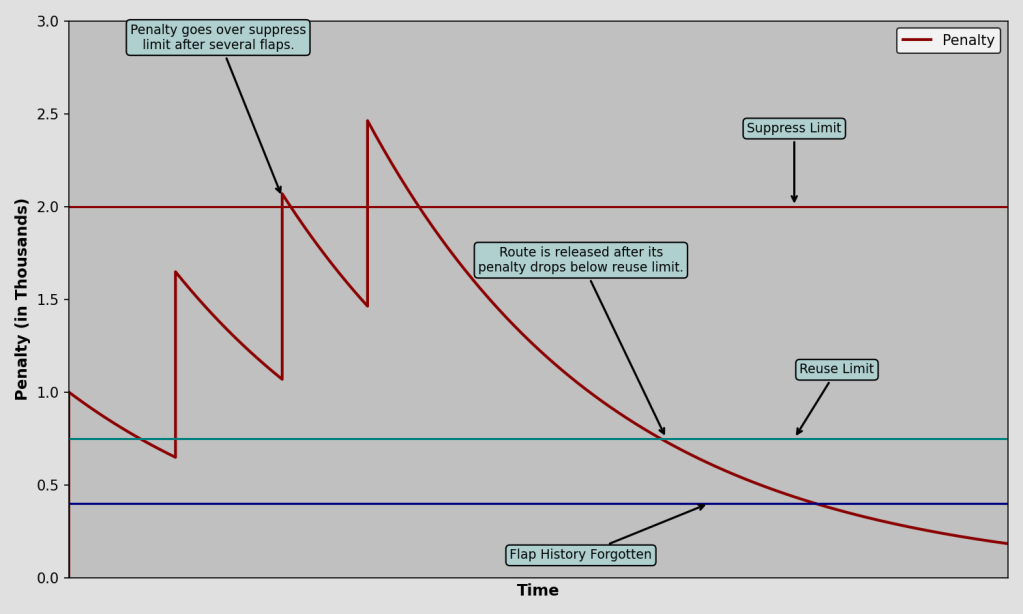
You can adjust the levels depicted on the graph above in FortiGate using the equivalent configurations:
dampening-suppress= Suppress Limit (Default 2000)- This is the penalty level at which the route will be suppressed.
- The first penalty is 1000 by default, hence suppression beginning after the second flap once the penalty has reached 2000. In actuality, due to the penalty decay over time, the route will not actually be suppressed until the third penalty.
dampening-reuse= Reuse Limit (Default 750)- When the penalty falls below this level, the route is no longer suppressed.
dampening-reachability-halflife, in minutes (Default 15)- After 15 minutes, the penalty will reach 50% of the original value.
- Increase this value for a longer penalty “recovery” time.
- Only applicable to reachable routes.
dampening-unreachability-halflife, in minutes (Default 15)- Same as above but applicable to routes that are unreachable or withdrawn.
- Reduce this value to allow suppressed routes to become eligible for reuse more quickly after they’ve stopped flapping.
dampening-max-suppress-time, in minutes (Default 60)- The maximum amount of time a route can be suppressed for.
Once the penalty falls below 50% of the Reuse Limit, the entire penalty is removed.
Flapping Routes – Option #3 – Graceful Restart
Graceful Restart is recommended to be used in situations when routing isn’t interrupted, but the router is unresponsive to routing update advertisements. The most common configurations affected by these situations are FortiGates in HA pairs, particularly during failovers and FortiOS upgrades (a occurs during upgrades).
config router bgp
    set graceful-restart {disable | enable}
    set graceful-restart-time <seconds>
    set graceful-stalepath-time <seconds>
    set graceful-update-delay <seconds>
    config neighbor
        edit 10.1.1.1
            set capability-graceful-restart {enable | disable}
        next
    end
end
When Graceful Restart is enabled and a FortiGate plans to go offline (FortiOS upgrade and other semi-controlled failovers), it will send a message to BGP peers stating that it plans to go offline temporarily and for how long. The peer routers will keep the FortiGate in their routing tables until the expected downtime is exceeded, preventing routing flaps.
- In an HA pair, the BGP daemon only runs on the primary unit. When a failover occurs, Graceful Restart will tell the peer to keep the FortiGate its routing table, allowing the peering to stay up while the secondary is in the process of coming online.
- The higher level config router bgp > set graceful-restart will enable Graceful Restart globally, while the config neighbor > set capability-graceful-restart only enables it with the single peer.
- Enabling Graceful Restart will cause BGP to flap (reset).
- For Graceful Restart to work, it needs to be configured on both sides of the peering.
- Graceful Restart will delay the time until actual outages are realized by peers. The standard keepalive timeout for BGP is 3 minutes. With GR enabled, an additional 2 minutes are added by default, for a total of 5 minutes.
- It is not recommended to use Graceful Restart concurrently with BFD.
- BFD will detect the peering failure before GR can signal a Graceful Restart.
HA + BGP Graceful Restart for no traffic interruption during failover: https://community.fortinet.com/t5/FortiGate/Technical-Tip-Configuring-FortiGate-HA-and-BGP-graceful-restart/ta-p/196150
Bidirectional Forwarding Detection (BFD)
BFD allows for fast detection of failures between peerings by sending unique BFD packets between the devices.
- BFD works with static routes, OSPF, and BGP.
- BFD can be configured globally, by VDOM, or by interface.
- Once BFD is enabled to one of the above scopes, it can be enabled on a route or routing protocol.
- For BFD to work with BGP, both sides of a peering must have it configured.
- It is not recommended to use BFD for peerings that occur over WAN connections, rather it is recommended for directly connected peers.
- Using BFD with peers >1 hop away (not directly-connected) will require the config multihop-template configuration.
Peering Establishment Verification List:
- Verify configured peer AS from both sides
- Your BGP debug will print a “Bad Peer AS” if you have configured your peer AS incorrectly.
- Verify configured peer IP from both sides
- Verify BGP authentication settings from both sides
- Run a packet capture to your peer IP
- Check for full TCP handshakes
- Run a Debug Flow to your peer IP
- Check for any and all blocks, drops or errors
- Verify your FortiGate is listening on port 179 for BGP traffic
diagnose sys tcpsock | grep 179- Check local-in policies (BGP is allowed by default)
 Fortinet NSE8/FCX Certification
Leave a comment